![White horizontal logo 1024x250.png]](https://emteria.com/hs-fs/hubfs/logos_emteria/White%20horizontal%20logo%201024x250.png?height=40&name=White%20horizontal%20logo%201024x250.png)
Before you begin, make sure you have the following:
-
Raspberry Pi 5 with at least 2GB RAM (4GB recommended)
- SD Card with at least 16 GB storage (32 GB recommended)
- SD Card Reader (built-in or USB adapter)
- An Emteria account - create one here for free
Choose your installation method:
-
Raspberry Pi Imager - recommended, easiest
- Emteria Downloads - get the latest Android OS image directly, always up-to-date
Method 1: Raspberry Pi Imager
-
Visit the Raspberry Pi website and download the right Raspberry Pi Imager version for your system: Ubuntu (x86) · Windows · macOS. Proceed with the instructions to finish the Imager installation.
- Insert your SD card into your computer, then launch Raspberry Pi Imager. Grant any permissions the application requests.
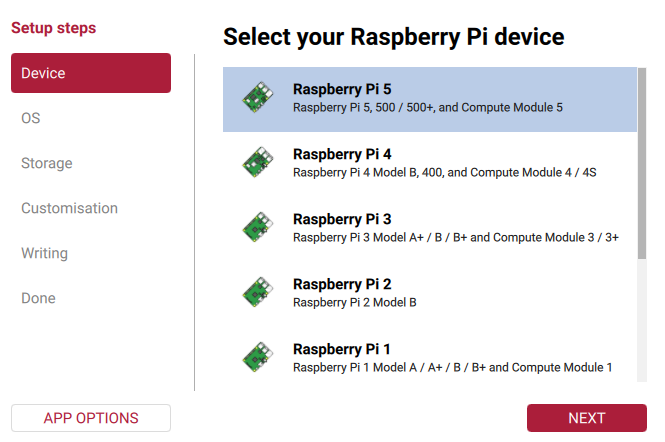
3. Choose your Raspberry Pi device, Raspberry Pi 5
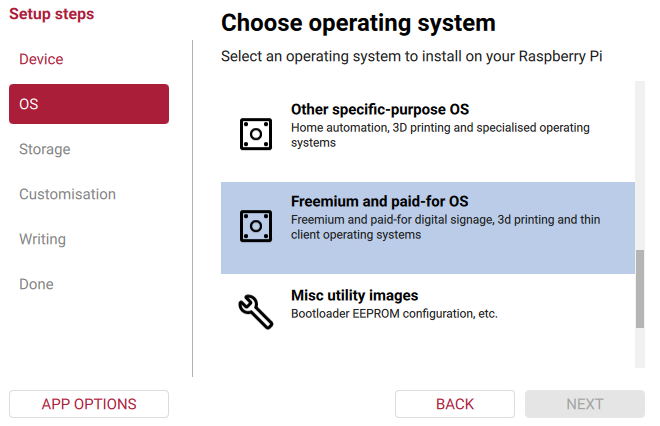
4. Choose the operating system, the Freemium and paid-for OS.
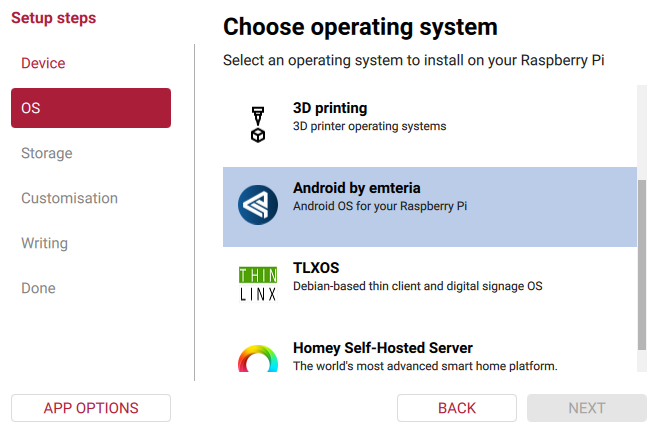
5. Select Android by Emteria.
6. Click Choose SD Card, and select the correct card, to write the image.
7. Wait for the write and verification steps to complete. Do not interrupt the process.
8. Remove the SD card safely after the success message appears.
9. Insert the SD Card into your Raspberry Pi 5 and power it on.
Method 2: Emteria Downloads
- Log in to your Emteria account at emteria.com and go to the Downloads section.
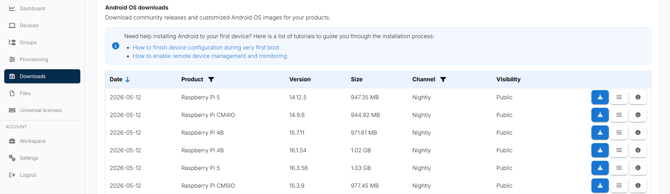
- Scroll down and choose the latest Android OS image for your Raspberry Pi. Emteria Downloads always has the most up-to-date versions available.
- Flash the image onto your SD card using any flashing tool of your choice, for example Balena Etcher or Raspberry Pi Imager (Use Custom and navigate to the downloaded image).
4. Insert the SD card into your Raspberry Pi and power it on.
Your Raspberry Pi 4 doesn't boot up? Checkout this article.